 Hillsboro
Book a bay
Hillsboro
Book a bay
How to use the simulator
Our bay runs GSPro. If you've never used a golf simulator, this is everything you need. The screenshots below are the actual screens you'll see in the bay.
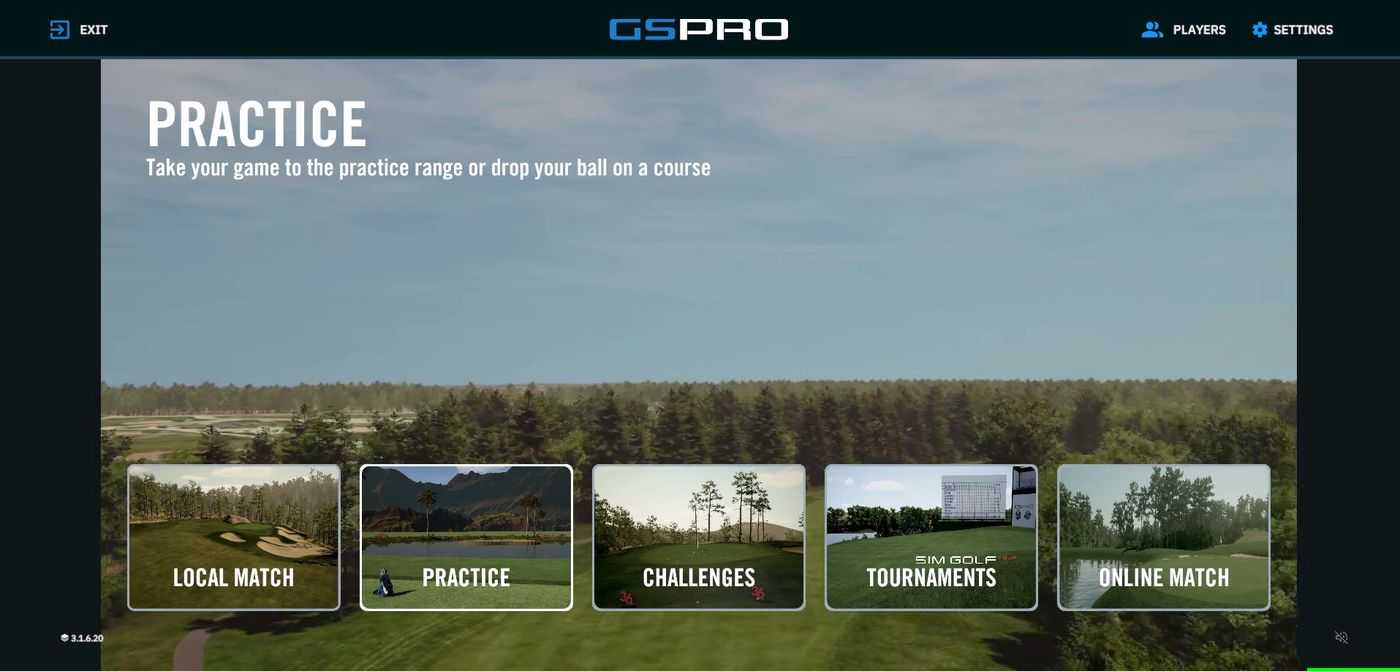
Start a round
About a minute from walking in to your first tee shot.
 1
2
3
4
1
2
3
4
- Local Match — normal play, alone or in a group. This is the one you want.
- Practice — driving range and playing holes with no score.
- Challenges — long drive, distance challenges and skills tests.
- Players and Settings — profiles and machine settings.
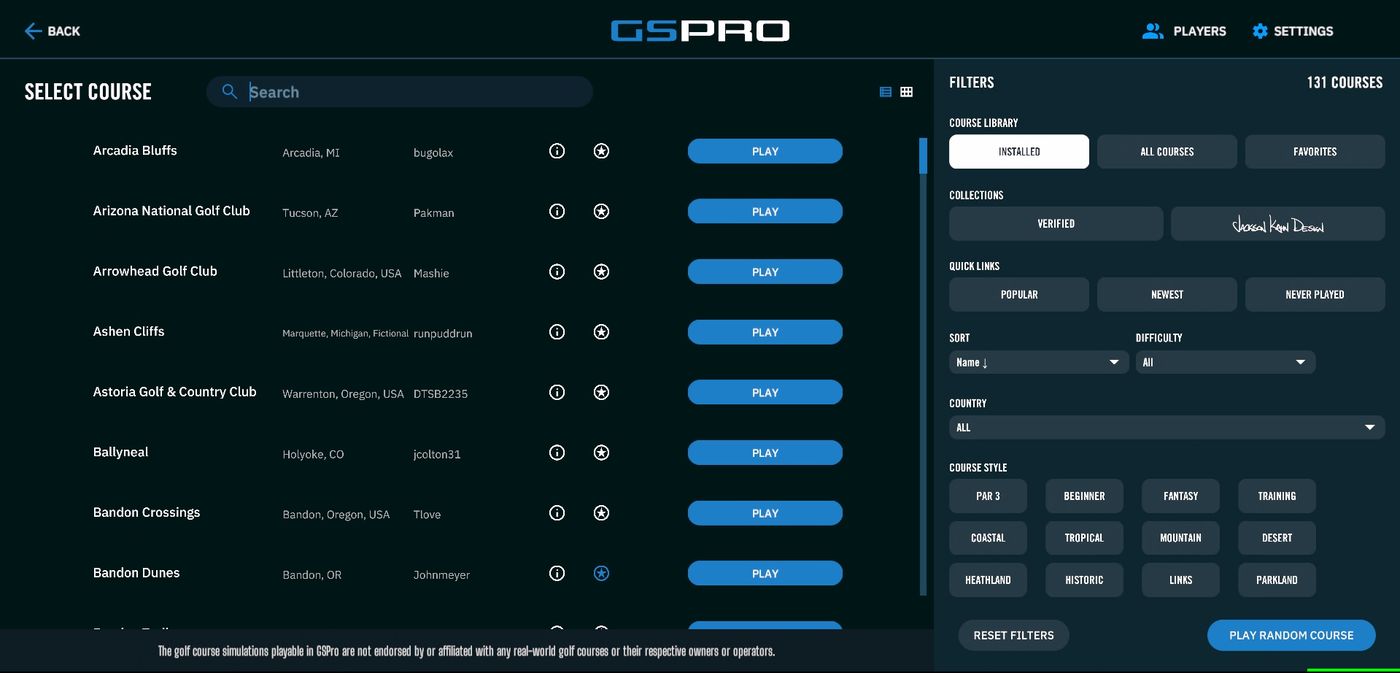
1. Pick a course
 1
2
3
4
1
2
3
4
- Search by course name.
- Installed — stay on this. These courses are ready to play right now.
- Over 130 courses are installed in our bay, from Bandon Dunes to Arcadia Bluffs.
- All Courses shows everything ever built for GSPro, but anything not installed has to download first, and each one is about a gigabyte. Don't spend your session waiting.
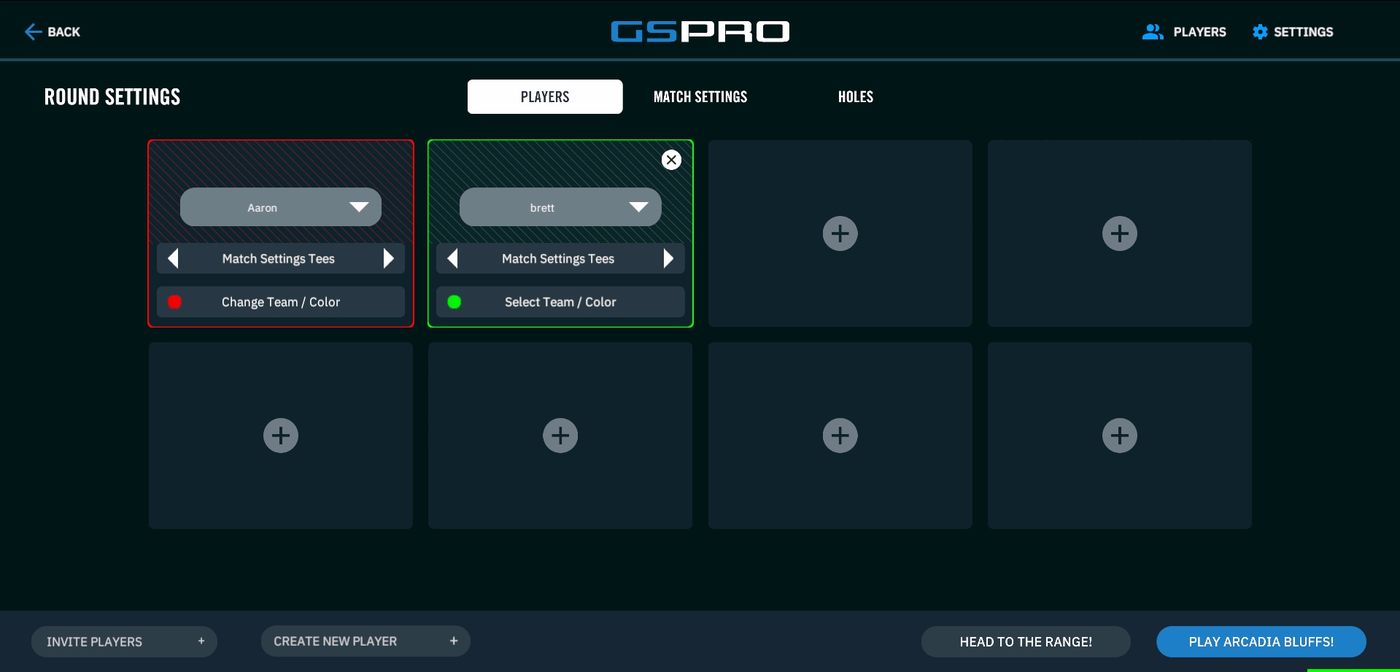
2. Add your players
 1
2
3
4
1
2
3
4
- Create New Player — add everyone in your group by name. Up to 8 can play.
- Tees — each player can play different tees. Great for mixed groups.
- Team / colour — pick a colour so you can tell shots apart.
- Head to the Range — warm up first, then come back and start the round.
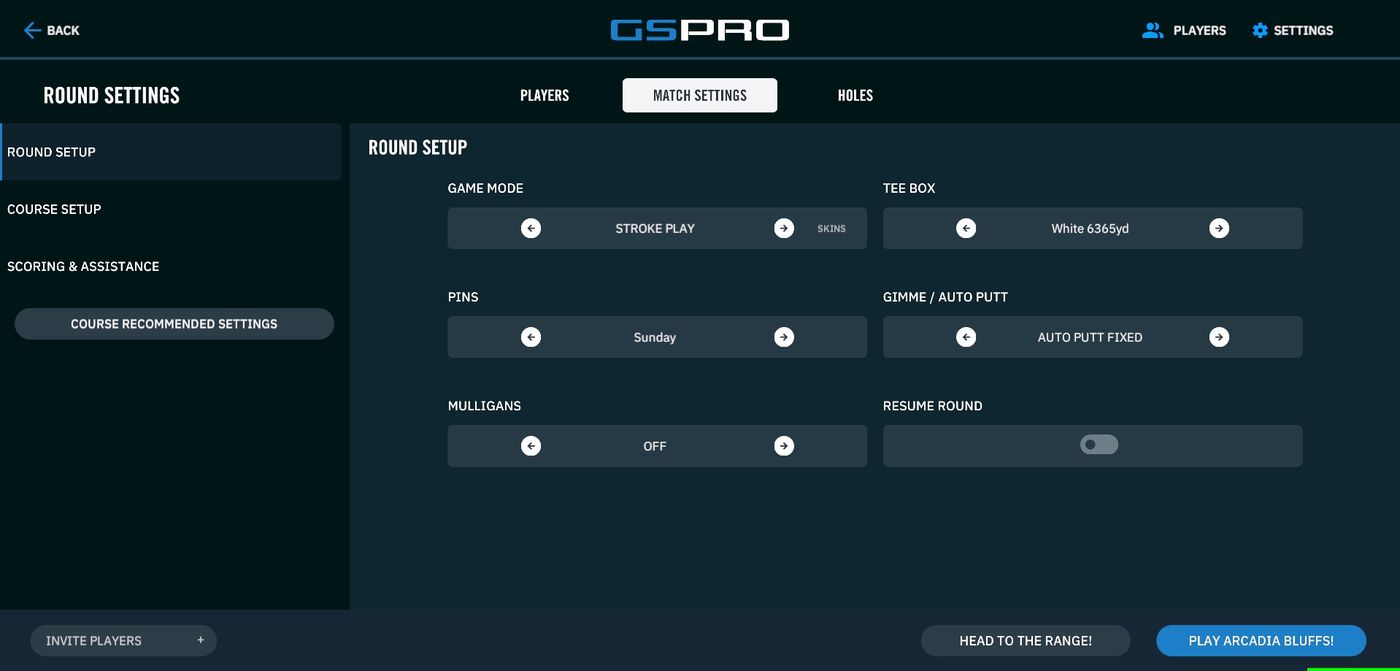
3. Set up the round
 1
2
3
4
5
1
2
3
4
5
- Course Recommended Settings — one tap sets everything the way the course designer intended. If you do nothing else, do this.
- Game mode — Stroke Play counts every shot. Also here: Match Play, Stableford, Scramble, Best Ball, Alternate Shot, Shamble and Skins.
- Tee box — with the total yardage. The fastest way to make a course easier or harder.
- Gimme / Auto Putt — how putting is handled. Explained below.
- Mulligans — do-overs, on or off.
4. Hit Play
The blue button in the bottom right starts the round. Put one ball down and swing.
 1
2
1
2
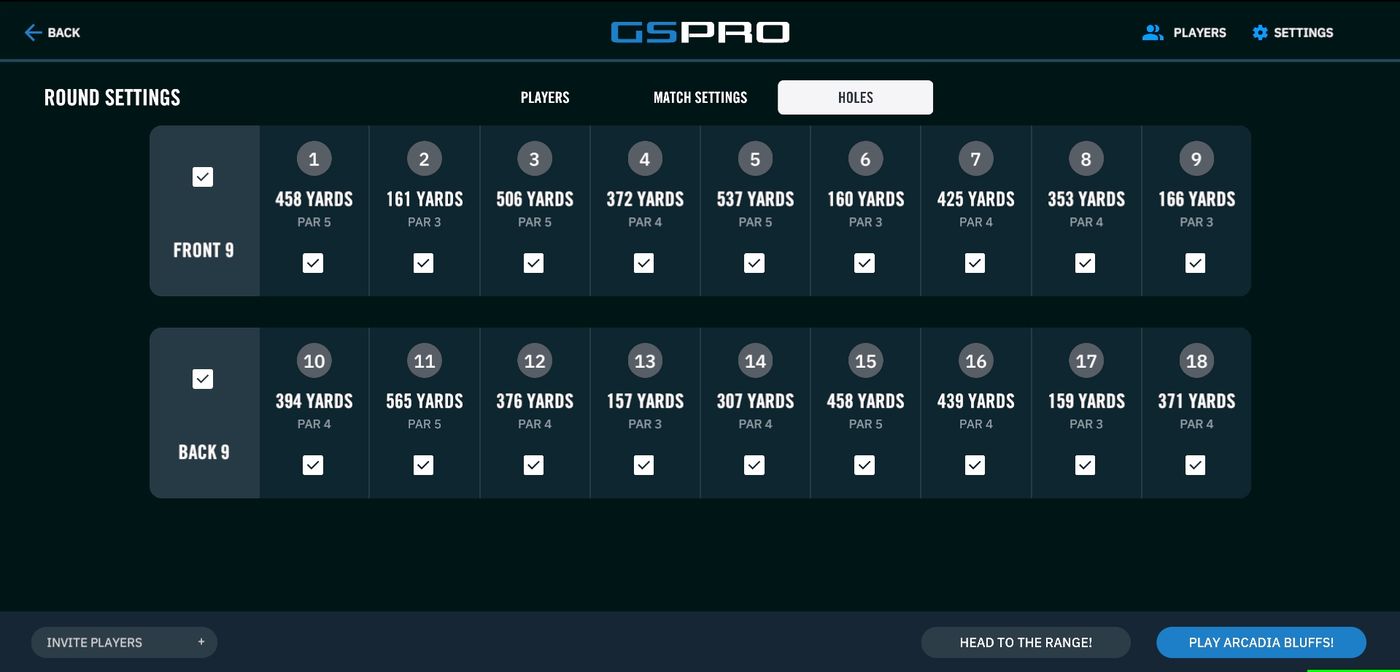
- Front 9 — leave ticked.
- Back 9 — untick for a 9-hole round.
What the settings mean
Tap any term. These are the ones that change how your round plays and scores.
Putting and gimmes
Gimme distance
A circle around the hole. If your ball stops inside it, the putt is given. You can set it from 2 to 20 feet. A bigger circle means a faster round.
Auto-Putt Fixed our default
Nobody putts. Your approach shot decides it: finish inside 8 feet and you're given one putt, inside 40 feet and you're given two, anywhere else on the green is three. Those two distances are set on the machine and shown in the screenshot below.
Same shot, same result every time, which is why we use it for league play.
Auto-Putt Random
Also no putting, but the number of putts is decided randomly, with closer balls more likely to drop. Fine for fun, unfair for competition.
Pick Your Putt
You type in how many putts to give yourself once you're on the green.
AutoPutt Fixed w/Chip
Auto putting, plus chip shots around the green handled for you. The quickest way round, and the least golf.
Putting Assistance
Nudges putts that start slightly offline back toward your intended line. GSPro calls it a "semi-autocorrect."
Putting Forgiveness
Easy, Normal or Hard. Controls how often putts lip out. Normal is the default and, per GSPro, is "designed to be as close to real life as possible."
Breakline Indicator
A red aiming stick with a white tail on the green. The longer the tail, the more break.
Concede / Auto Concede
Caps your score on a hole, ours at double bogey. Once you've hit that number you pick up and move on. It keeps a bad hole from wrecking the group's pace.
The course
 1
2
3
4
1
2
3
4
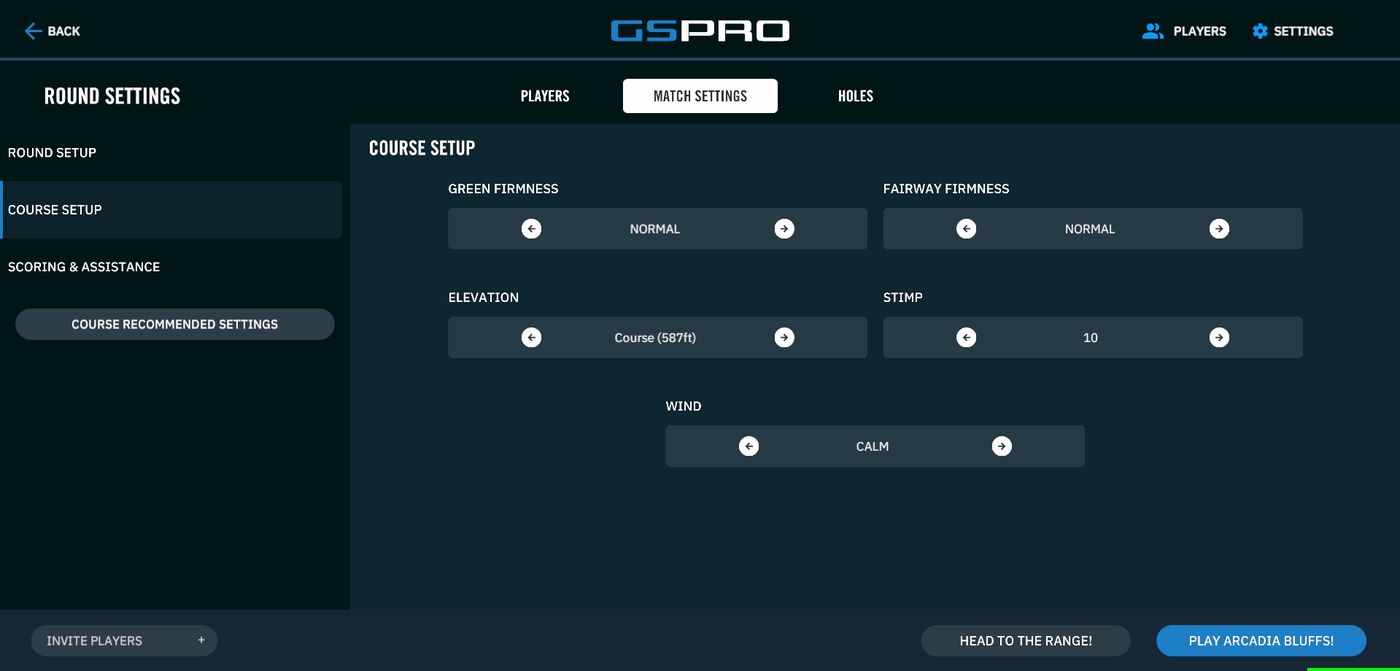
- Firmness — how much the ball bounces and rolls, on greens and fairways.
- Stimp — green speed. Higher is faster and harder to putt. 10 is a normal club green.
- Wind — Calm is 0 to 5 mph, Breezy 5 to 10, Gusty 10 to 25. Start calm.
- Elevation — altitude. Higher means thinner air and longer shots.
Pins
Thursday, Friday, Saturday or Sunday pin positions, like a tournament. Sunday pins are the toughest.
Course Recommended Settings
One button that sets every match setting to the course designer's own preset. The easiest way to a fair setup.
Scoring and difficulty
 1
2
3
4
5
1
2
3
4
5
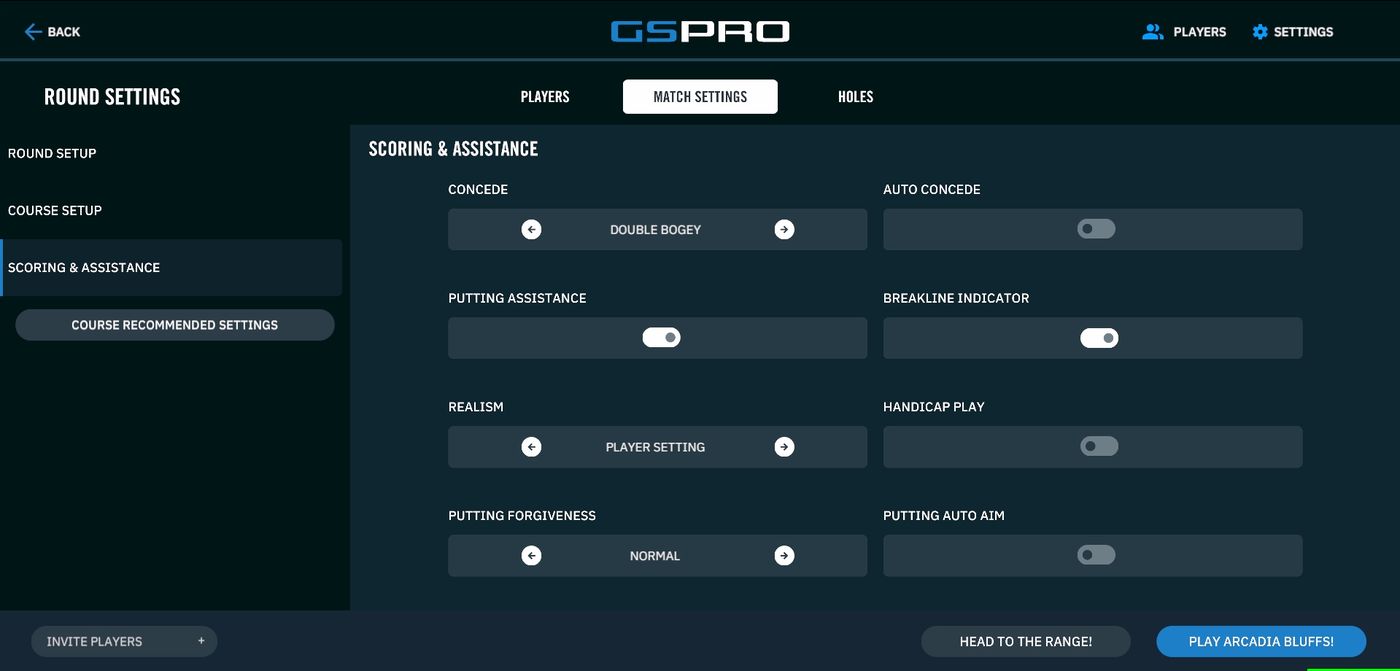
- Concede — the maximum score on a hole.
- Putting Assistance — help keeping putts on line.
- Breakline Indicator — the green-reading aid.
- Realism — leave on Player Setting so each person's own profile applies.
- Handicap Play — applies each player's handicap so a mixed group can compete fairly.
Game modes
Stroke Play (count every shot), Match Play (win holes), Stableford (points per hole), Scramble (everyone hits, play the best ball), Best Ball, Alternate Shot, Shamble and Skins. Stroke Play is what most groups want.
Mulligans
Do-overs. When on, press Ctrl + M to replay a shot. Off if you're keeping a real score.
Play Mode: Realistic vs Casual
Realistic plays true to your swing and is the default. Casual adds a power boost you can dial up to 2x. It exists so a beginner can keep up with a good player.
Ball Shape / Curvature
A slider from Restricted to Full. Restricted straightens out your misses; Full is the realistic setting.
Player Rotation
Classic alternates like real golf. Play Out Hole lets one player finish the hole before the next starts, which is usually quicker in a sim.
Resume Round
Picks up an unfinished round. Handy when your session ends mid-round and you come back another day.
What we recommend
A good starting point for a group that just wants to play.
Keys worth knowing
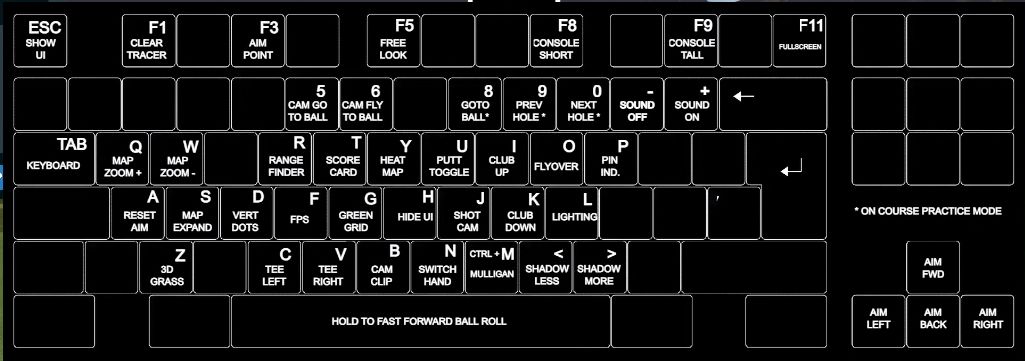
Press TAB in the bay and this exact chart appears on screen.
 1
2
3
4
1
2
3
4
- T — scorecard.
- 8 — move to your ball, in On Course Practice only.
- Ctrl + M — mulligan.
- R — range finder.
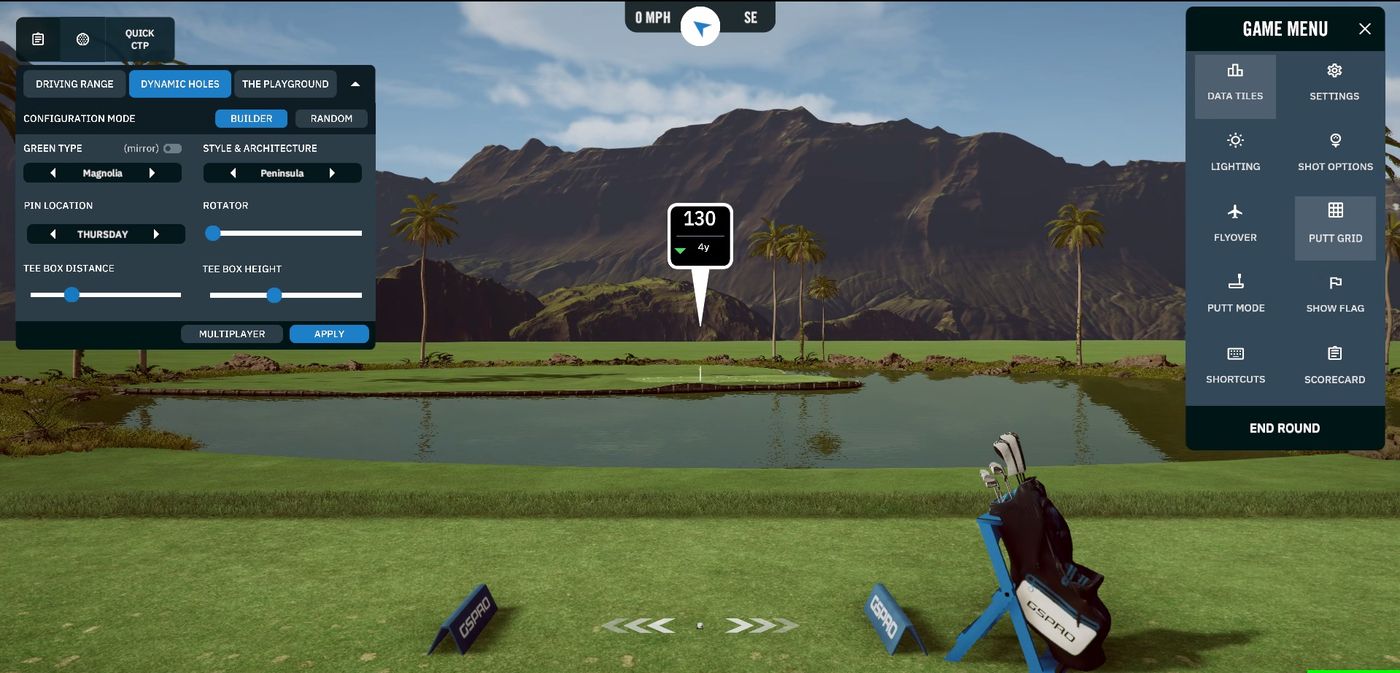
The game menu
 1
2
3
4
1
2
3
4
- Scorecard — same as pressing T.
- End Round — finish and return to the menu. Please do this before you leave.
- Data Tiles — choose which numbers show on screen.
- Putt Mode and Putt Grid — putting view and green reading.
Ways to practice
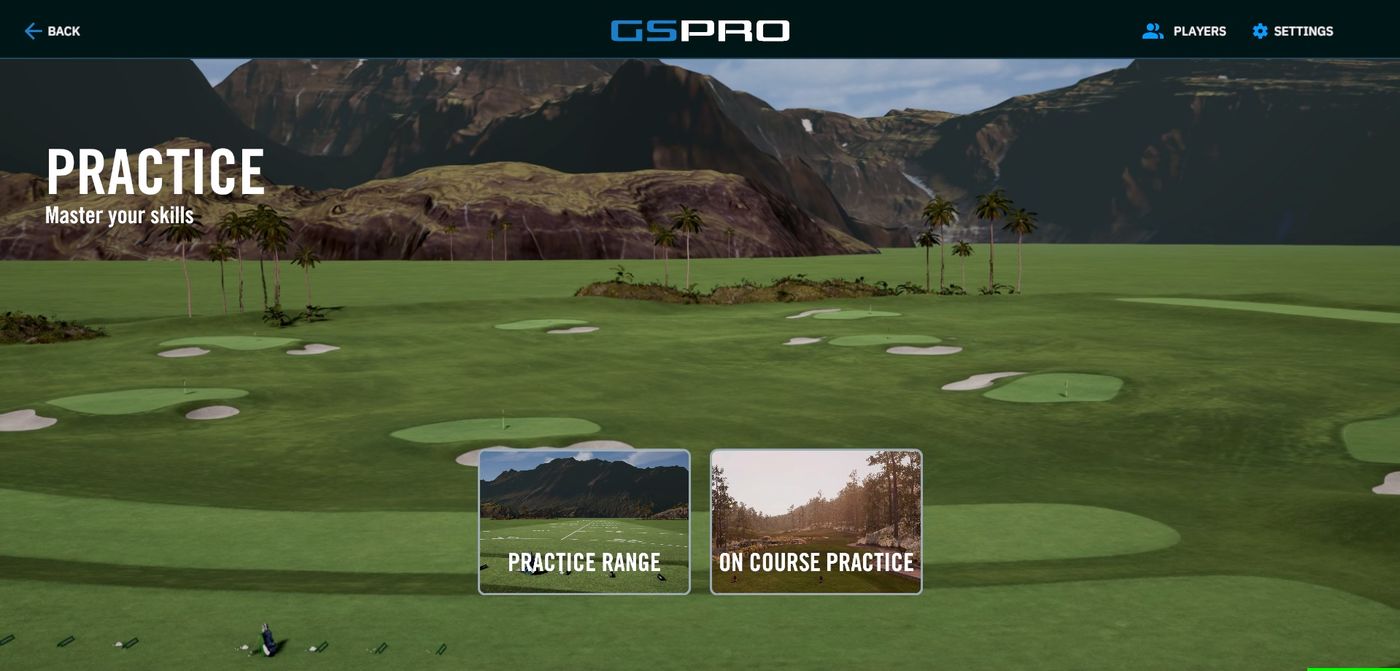
From the main menu, Practice has two options. Challenges is its own tile.
 1
2
1
2
- Practice Range — the driving range, plus dynamic holes and the playground.
- On Course Practice — play any hole on any course with no score kept.
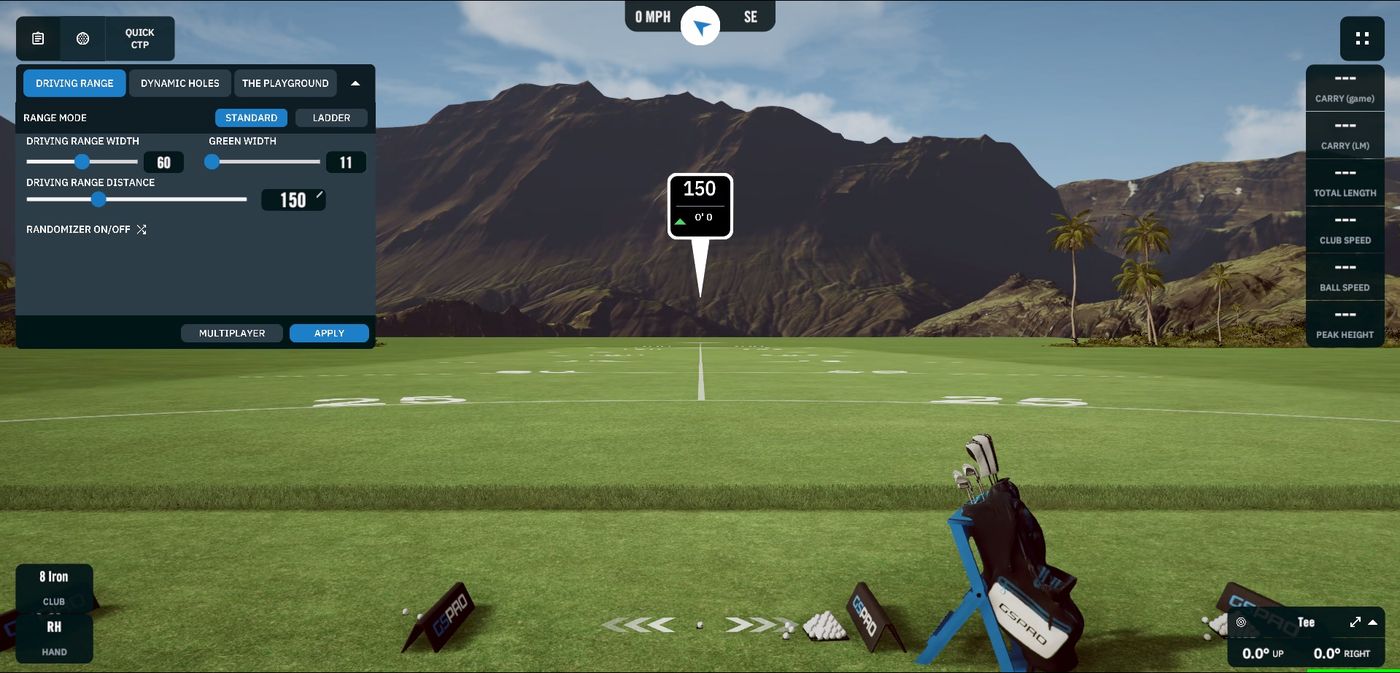
The range, and the three modes hiding in it
 1
2
3
4
5
1
2
3
4
5
- Driving Range — the standard range.
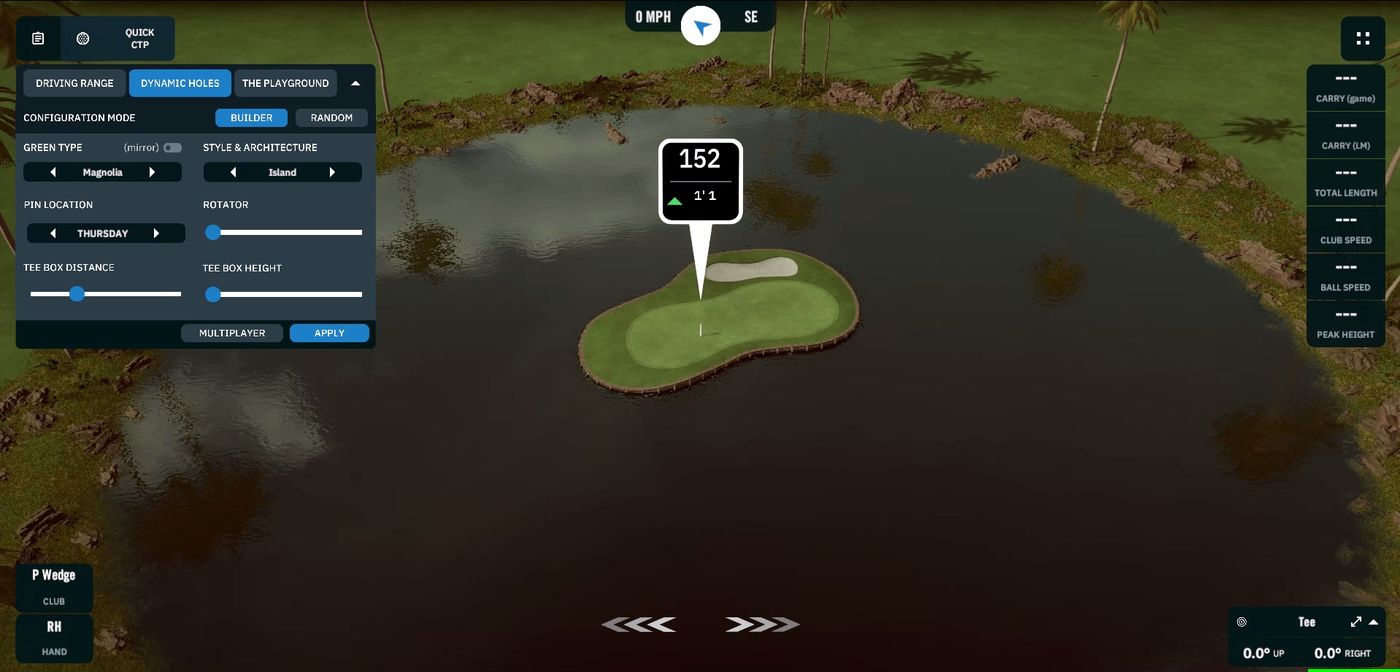
- Dynamic Holes — build a hole to practise on.
- The Playground — preset lies and pin positions.
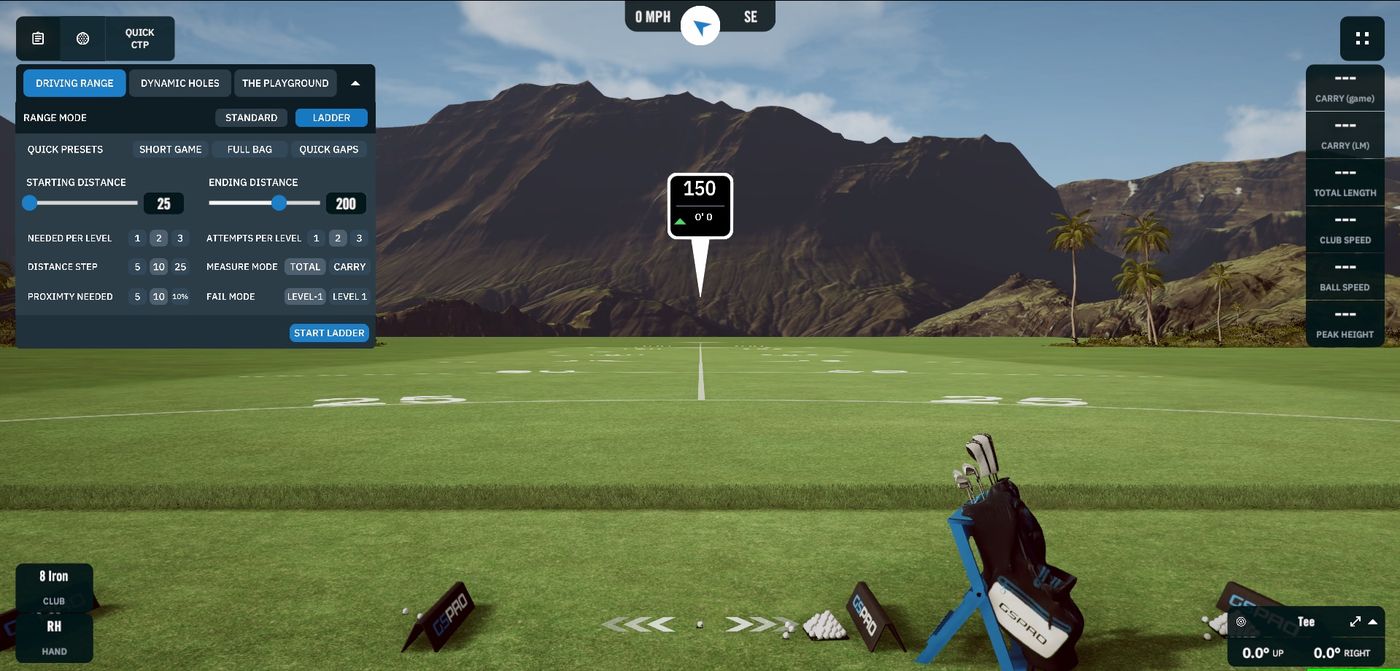
- Standard or Ladder — free hitting, or a structured test.
- Target distance — drag to move the target flag.
 1
2
3
4
1
2
3
4
- Quick presets — Short Game, Full Bag or Quick Gaps.
- Start and end distance — the range you'll work through.
- Attempts per level and how close you have to land to pass.
- Start Ladder — then work your way up, one distance at a time.
 1
2
3
4
1
2
3
4
- Builder or Random — design the hole or let it surprise you.
- Green type and style — island, peninsula and more.
- Pin location — Thursday through Sunday.
- Tee box distance — how long the shot plays.
Challenges
 1
2
3
4
1
2
3
4
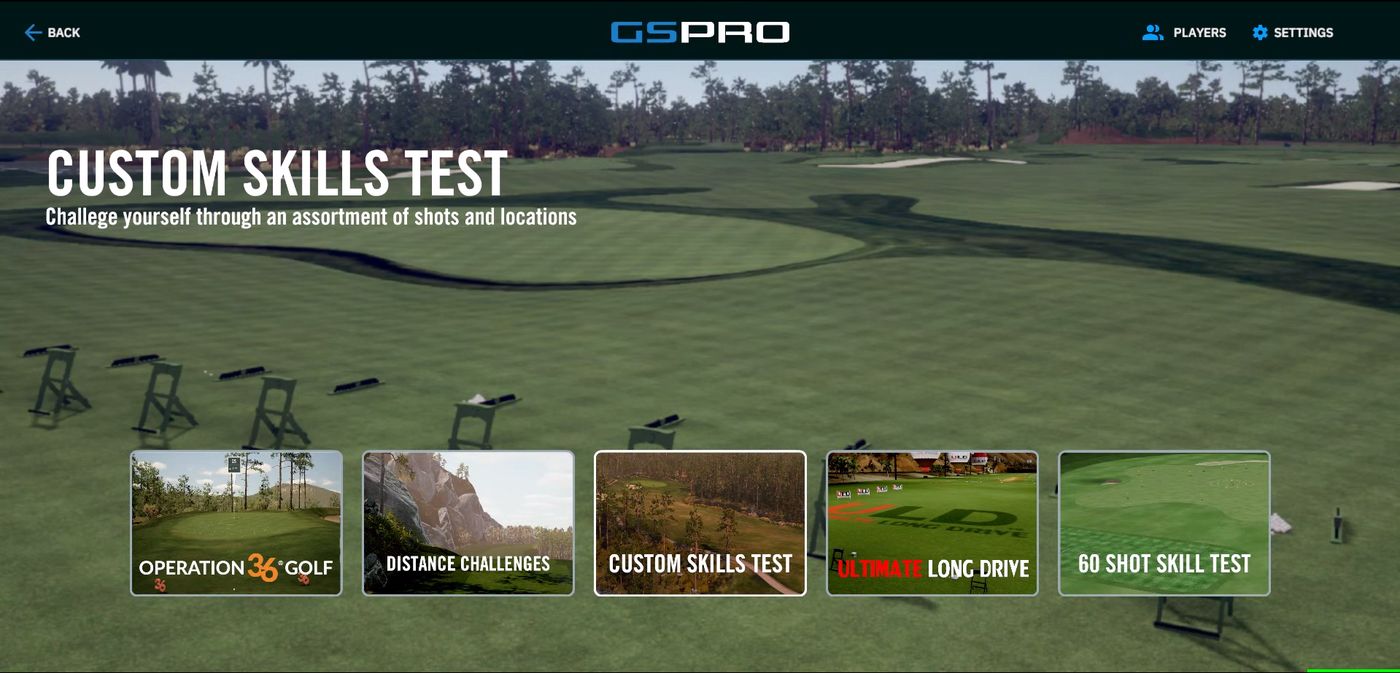
- Operation 36 — play 9 holes and try to shoot par or better, then move up a level. The best on-ramp for a new golfer.
- Distance Challenges — 15 challenges from 10 feet to 250 yards.
- Ultimate Long Drive — timed long-drive contest. The best one with a group.
- 60 Shot Skill Test — scored practice with strokes gained and a leaderboard.
Your numbers
 1
2
3
1
2
3
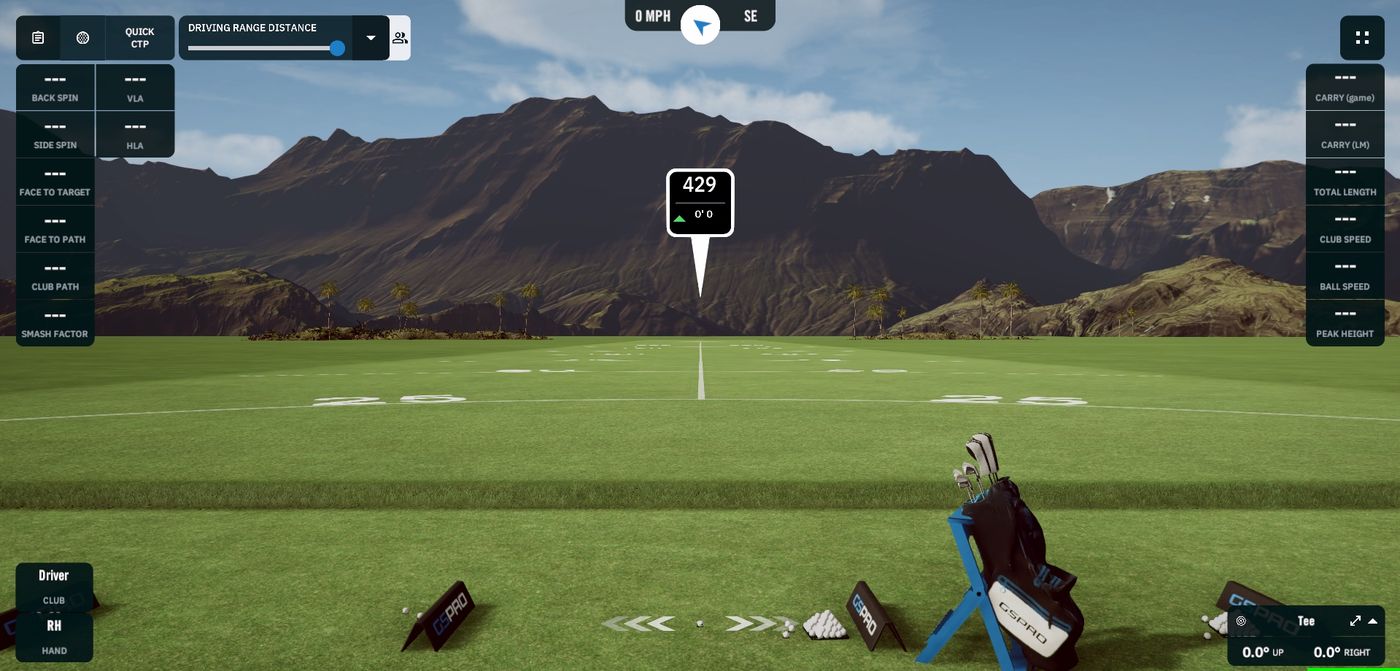
- Club and spin numbers — back spin, side spin, club path, face angle, smash factor.
- Distances and speeds — carry, total, club speed, ball speed, peak height.
- Quick CTP — a fast closest-to-the-pin contest.
Track your own game
Add an email to your player profile and GSPro keeps every round for you, free.
 1
2
3
4
5
1
2
3
4
5
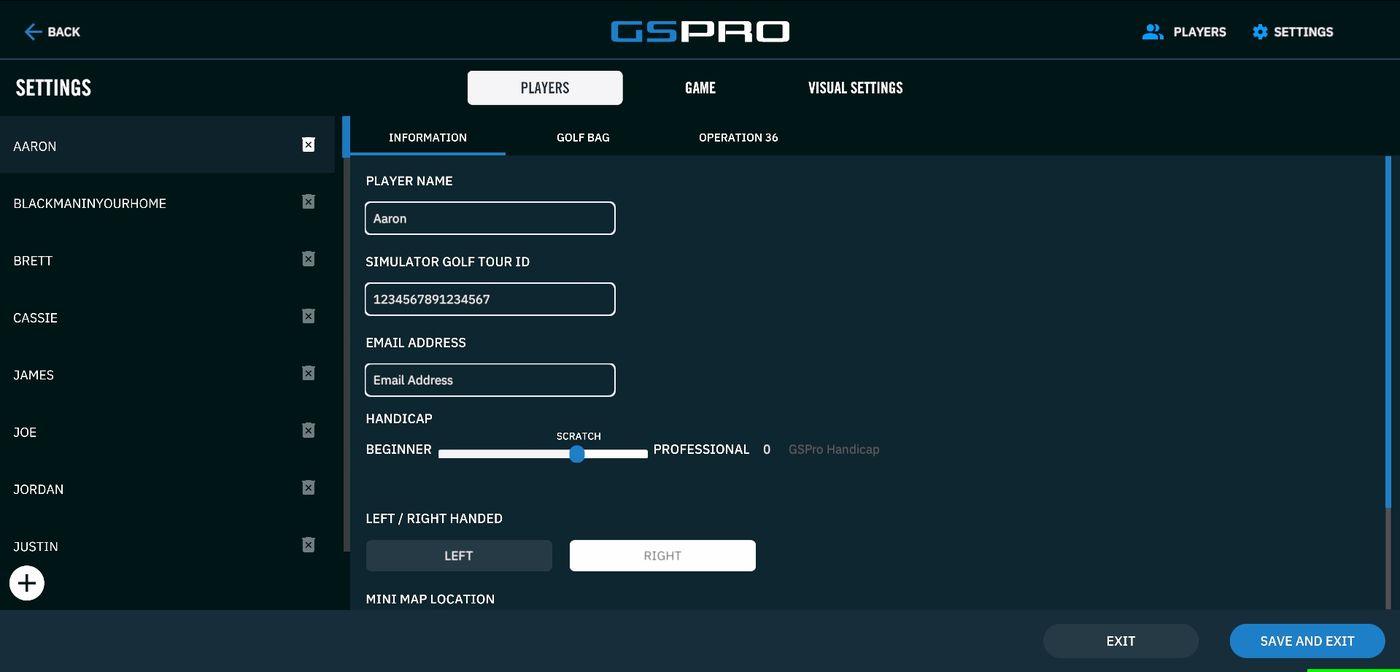
- + — add yourself as a player.
- Player name — what shows on the scorecard.
- Email address — the key to your stats. Add it here.
- Handicap — set it yourself, or let GSPro work it out from your rounds.
- Save And Exit — do this, or nothing you typed is kept.
- Create your profile in the baySettings › Players › the + button, then add your name and email.
- Register on the portalGo to portal.gsprogolf.com and sign up with that same email, then click the link in the confirmation email. You don't need to own GSPro.
- PlayRounds from our bay appear in your account.
What you get: every round with its scorecard, strokes gained off the tee, on approach and putting, fairways hit, greens in regulation, putts per green, and a handicap that tracks over time. The shots page has ball flight and dispersion charts club by club.
If something's off
 1
2
3
1
2
3
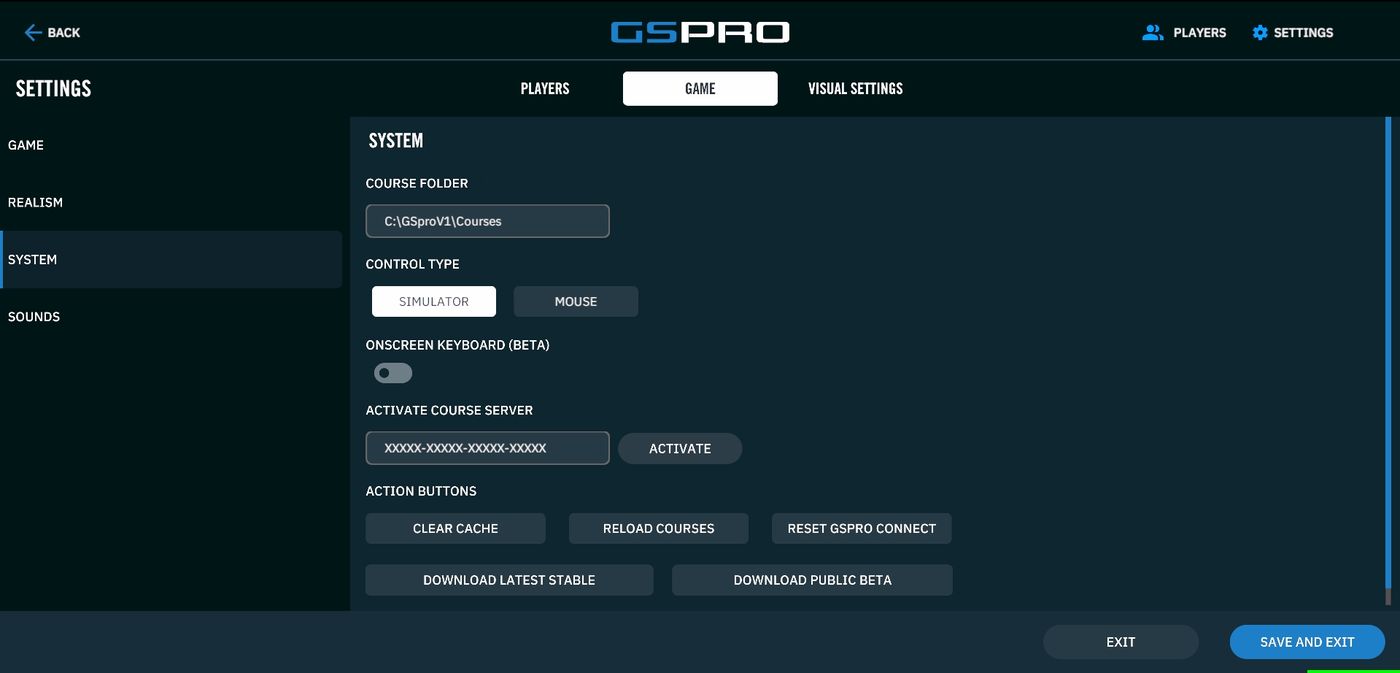
- Reset GSPro Connect — the fix for shots not registering. Settings › Game › System.
- Control Type — must stay on Simulator. On Mouse, the launch monitor is ignored.
- Reload Courses — if a course you expect is missing from the list.